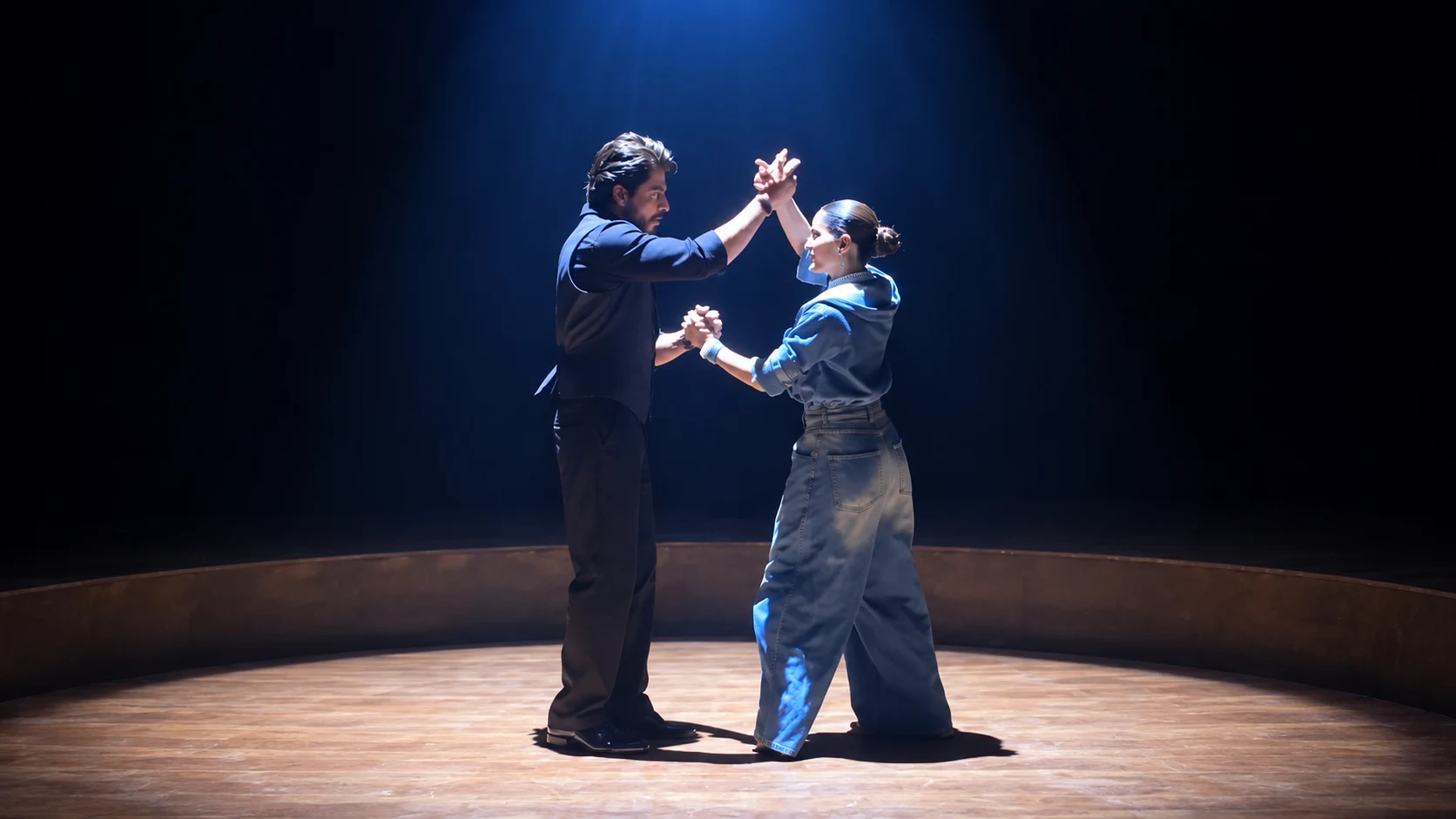
I recently tried creating a cinematic dance video using AI with two different reference photos, and the result turned out quite impressive. Instead of creating random characters, I wanted the video to use the appearance of the two people from their own photos and place them together in the same cinematic dance scene.
The idea was to create an emotional dance performance on a dark circular wooden stage, with a single spotlight from above. I also wanted the movements to look smooth, especially during the spins, dance lifts, and dip scenes.
If you also want to create a similar AI dance video using two photos, you can follow the steps below.
How to Create a Cinematic Dance Video Using Two Photos
There are several AI video generators that allow you to use reference images when creating a video. The exact options can be different depending on the tool you use, but the overall process is quite similar.
Step 1. Prepare Two Reference Photos
First, prepare two clear photos.
One photo should be of the person you want to use for the male character, while the second should be of the person you want to use for the female character.
I recommend using clear photos where the faces are easy to see. Good-quality reference images generally make it easier for the AI tool to maintain the appearance of the people throughout the generated video.
Step 2. Upload Both Photos
Open your AI video generation tool and upload both reference photos.
Make sure you clearly indicate which photo belongs to which person. This is important when you are creating a scene involving two different people.
The AI then uses these images as visual references while generating the characters and scenes.
Step 3. Choose the Video Format
For this type of video, I prefer using a vertical 9:16 format.
This works especially well if you want to share the finished video on platforms such as Instagram Reels, YouTube Shorts, or other mobile-focused platforms.
A vertical format also gives enough space for full-body dance movements while keeping both people visible.
Step 4. Create the Cinematic Stage
For my video, I wanted the entire performance to take place on a circular wooden stage with a completely dark background.
A single spotlight from above helps keep attention on the dancers while creating a theatrical cinematic atmosphere.
You can also experiment with other settings, such as an empty theatre, concert stage, studio, rooftop, or outdoor location.
Step 5. Keep the Outfits Consistent
One thing I paid attention to was keeping the outfits consistent throughout the video.
The man wears a black textured blazer with a black shirt and black trousers, while the woman wears a teal-green long coat, a blue-and-grey striped scarf, black trousers, and beige ankle boots.
Keeping the clothing consistent is important because AI-generated videos can sometimes introduce unwanted changes between different scenes.
Step 6. Create the Dance Scenes
Instead of trying to make the entire performance happen randomly, I divided the story into seven scenes.
The first scene starts with the couple walking onto the stage while holding hands.
The second scene moves closer as they face each other and share a warm moment.
In the third scene, they raise their joined hands together while smiling.
The fourth scene becomes more dynamic, with the man lifting the woman and smoothly spinning her around. Her long hair, coat, and scarf move naturally with the rotation.
The fifth scene changes to a wider joyful pose with both dancers extending their arms.
The sixth scene introduces a classic dance dip, with the man supporting the woman as she gently leans backward.
Finally, in the seventh scene, the man lifts her into his arms and rotates with her before gently lowering her into a close embrace.
This gives the video a continuous emotional story instead of making it feel like seven unrelated clips.
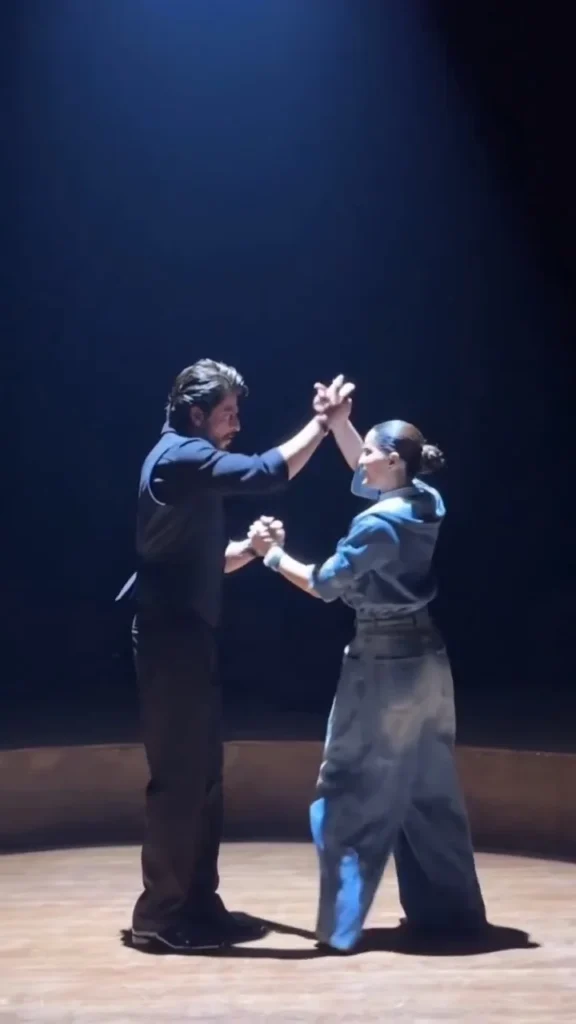
Keep the Faces Consistent
This was one of the most important parts of the video for me.
When AI generates multiple scenes, there can sometimes be changes in facial appearance, especially during fast movements, spins, or when the face is partially turned away from the camera.
Using the same reference photos throughout the process can help maintain visual consistency. However, no AI video generator can guarantee perfectly identical facial features in every frame, so it's always a good idea to check the final video carefully.
If you notice a significant change in someone's appearance, you can regenerate that particular scene rather than recreating the entire video.
Make the Dance Movements Smooth
Dance scenes can be challenging for AI because they involve a lot of body movement.
Spins, lifts, flowing hair, moving coats, and changes in body position can sometimes produce unnatural motion.
I found that describing the movements clearly helps. Instead of simply asking for a “dance,” specify whether the characters should walk, turn, spin, lift, dip, or embrace.
It is also important to keep the movement fluid and controlled. Sudden movements can make the generated video look less realistic.
Add Cinematic Lighting
Lighting can completely change the appearance of an AI-generated video.
For this concept, I wanted a dramatic spotlight against a deep black background. The light falls mainly on the dancers while the surrounding stage remains dark.
I also prefer keeping the colors rich and natural rather than making the video completely desaturated. Warm skin tones, deep blacks, and bright stage highlights give the footage a premium cinematic appearance.
Add a Small Watermark
If you want to add your own branding, you can place a small watermark in one corner of the video.
For this video, the watermark “NoorEditing07” can remain fixed in the same bottom corner throughout the video.
I recommend keeping the watermark small and using low opacity so that it doesn't distract from the dance performance.
Check the Final Video
After generating the video, watch the entire sequence from beginning to end.
Pay particular attention to:
- Faces and identity consistency
- Hands and fingers
- Body proportions
- Dance movements
- Spins and lifts
- Hair movement
- Clothing consistency
- Background continuity
- Lighting
- Watermark position
If one scene has a problem, you usually don't need to regenerate everything. You can regenerate the problematic section and use the better version in the final edit.
Final Words
That's it! Creating a cinematic dance video with two reference photos can be a lot of fun when you plan the scenes properly.
What I like about this type of AI video is that you can take two separate reference photos and turn them into a completely different cinematic story. With a dark stage, dramatic spotlight, expressive dance movements, flowing clothes, and smooth camera movements, the final result can look like a professionally produced dance performance.
The most important thing is to keep the characters, outfits, location, lighting, and overall story consistent from the first scene to the last. This makes the finished video feel like one continuous performance instead of a collection of unrelated AI-generated clips.



Leave a Reply