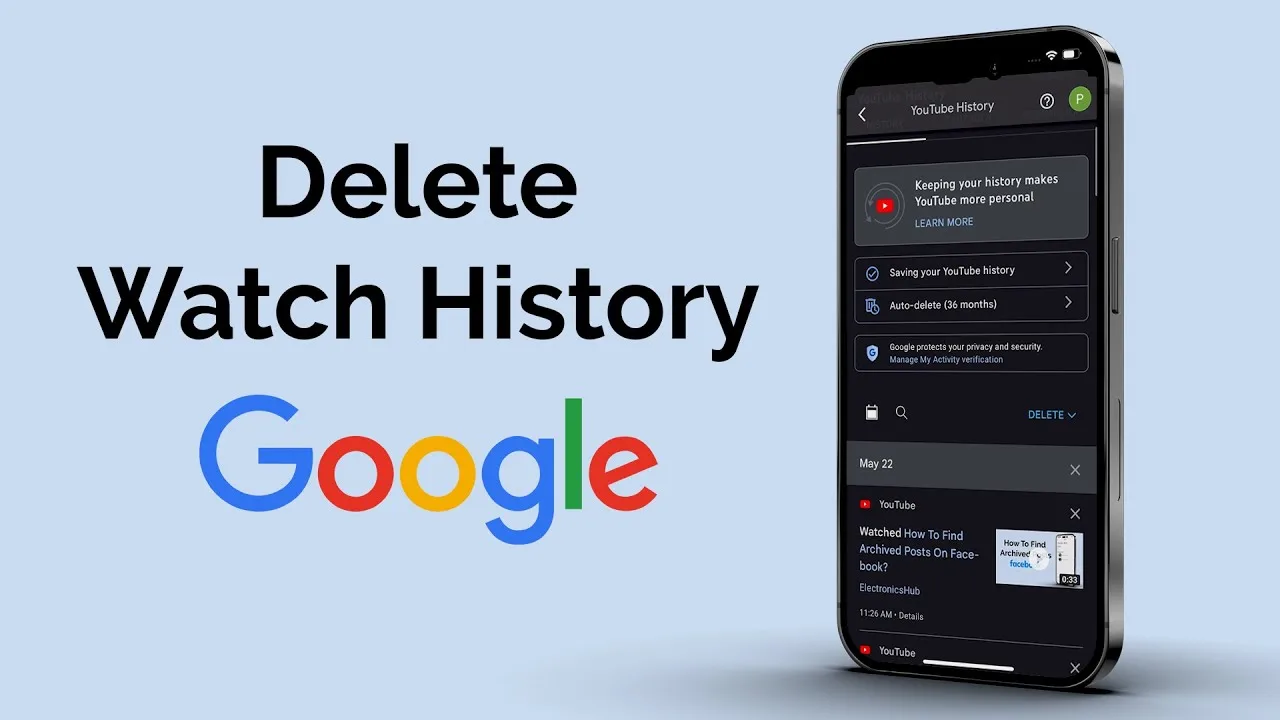
If you use YouTube or other Google services daily, your activity is automatically saved in your Google account. This includes the videos you watch, searches you make, and more. While this helps in getting better recommendations, sometimes you may want to clear your watch history for privacy or to reset suggestions.
In this guide, you will learn how to clear your Google watch history using Google My Activity in a simple and easy way.
What is Google My Activity?
Google My Activity is a dashboard where all your activity is stored in one place. It includes:
- YouTube watch history
- Google search history
- Voice and audio activity
- App usage data
With this tool, you can view, manage, and delete your data anytime.
Why Should You Clear Watch History?
There are a few common reasons why people clear their watch history:
- To protect privacy
- To remove unwanted or random videos
- To improve video recommendations
- To keep account activity clean
If your YouTube suggestions are not relevant, clearing history can help reset them.
Step-by-Step: Clear All Watch History
Follow these steps to delete your full watch history:
- Open Google My Activity in your browser
- Sign in to your Google account
- Click on the Delete option
- Choose All time
- Select YouTube from the list
- Click on Next
- Confirm by clicking Delete
Once done, your entire watch history will be removed.
Delete Specific Videos Only
If you don’t want to delete everything, you can remove selected items:
- Scroll through your activity
- Find the YouTube videos you want to delete
- Click on the X (delete) option next to them
This method is useful when you only want to clean a few entries.
Delete Watch History by Date
You can also remove history for a specific time period:
- Click on Delete
- Select Custom range
- Choose the start and end date
- Select YouTube
- Click Delete
This helps if you want to clear recent activity only.
Pause Watch History Tracking
If you don’t want Google to save your watch activity in future:
- Go to YouTube History settings inside Google My Activity
- Click on Turn off
- Confirm your choice
After this, your future watch activity will not be saved.
Use Auto-Delete Option
Google also provides an auto-delete feature:
- Open YouTube History settings
- Click on Auto-delete
- Choose a time period (like 3 months or 18 months)
- Save the settings
This will automatically remove old data without manual work.
Final Words
Managing your watch history is important for both privacy and better experience. With Google My Activity, you get full control over what data is saved and what is deleted.
It only takes a few minutes to clear your watch history, but it can make a big difference in keeping your account clean and your recommendations relevant.














Leave a Reply