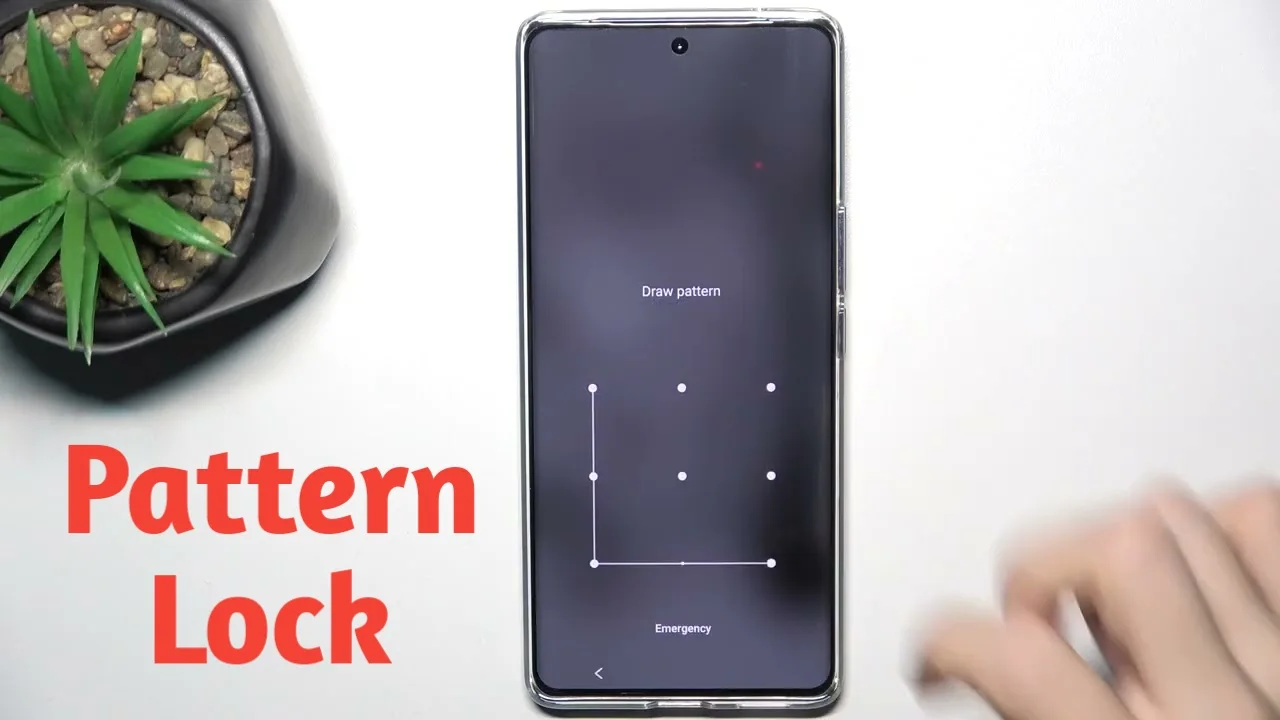
Securing your Android phone is important because it contains personal photos, messages, apps, and sensitive information. One of the easiest and most commonly used security options is the pattern screen lock. It allows you to unlock your phone by drawing a pattern on the screen, making access quick while keeping your data protected.
This guide explains how to set a pattern screen lock on an Android phone in a simple and easy-to-follow way.
What Is a Pattern Screen Lock?
A pattern lock is that familiar screen with dots where you draw a line in a specific shape. If the pattern matches what you set earlier, the phone unlocks. If not, it stays locked. No typing. No remembering long passwords. Just one smooth swipe.
Why Most People Prefer Pattern Lock
If you’ve tried PINs or passwords, you already know the pain wrong digits, caps lock, slow unlocking. Pattern lock feels easier because:
- Easy and fast to unlock
- More secure than swipe unlock
- No need to remember long passwords
- Works on almost all Android phones
- Ideal for daily phone use
How to Set Pattern Screen Lock on Android (Step-by-Step)
Pick up your phone and follow along.
Step 1: Open Settings
Unlock your phone and open the Settings app from the home screen or app drawer.
Step 2: Go to Security or Privacy
Scroll down and tap on Security, Privacy, or Lock Screen.
(The option name may differ based on phone brand.)
Step 3: Tap on Screen Lock
Select Screen Lock, Set Screen Lock, or Lock Screen Password.
Step 4: Choose Pattern
From the available lock options, tap on Pattern.
Step 5: Draw Your Pattern
Draw a pattern using at least four dots.
Redraw the same pattern to confirm it.
Step 6: Set a Backup PIN or Password
Some devices will ask you to create a backup PIN or password. This helps if you forget your pattern later.
Step 7: Confirm and Finish
Tap Confirm or Done.
Your pattern screen lock is now enabled.
Also Check:- How to Control My Phone With Voice?
Tips to Create a Strong Pattern Lock
To improve security, follow these tips:
- Use more than four dots
- Avoid straight lines or simple shapes
- Do not use easy patterns like letters
- Change your pattern occasionally
What If You Forget Your Pattern Lock?
If you forget your pattern lock, you can:
- Use the backup PIN or password
- Recover using your Google account (on supported devices)
- Use recovery options as a last solution
Always keep a backup method enabled to avoid losing access.
Pattern Lock vs PIN vs Password
| Lock Type | Ease of Use | Security |
|---|---|---|
| Pattern | Very Easy | High |
| PIN | Easy | Medium |
| Password | Moderate | Very High |
Pattern lock is a great option for users who want quick access with good security.
Conclusion
Setting a pattern screen lock is one of those small things that quietly protects you every single day. It takes less than a minute, but once it’s on, you feel more relaxed knowing your phone isn’t open to everyone.










Leave a Reply