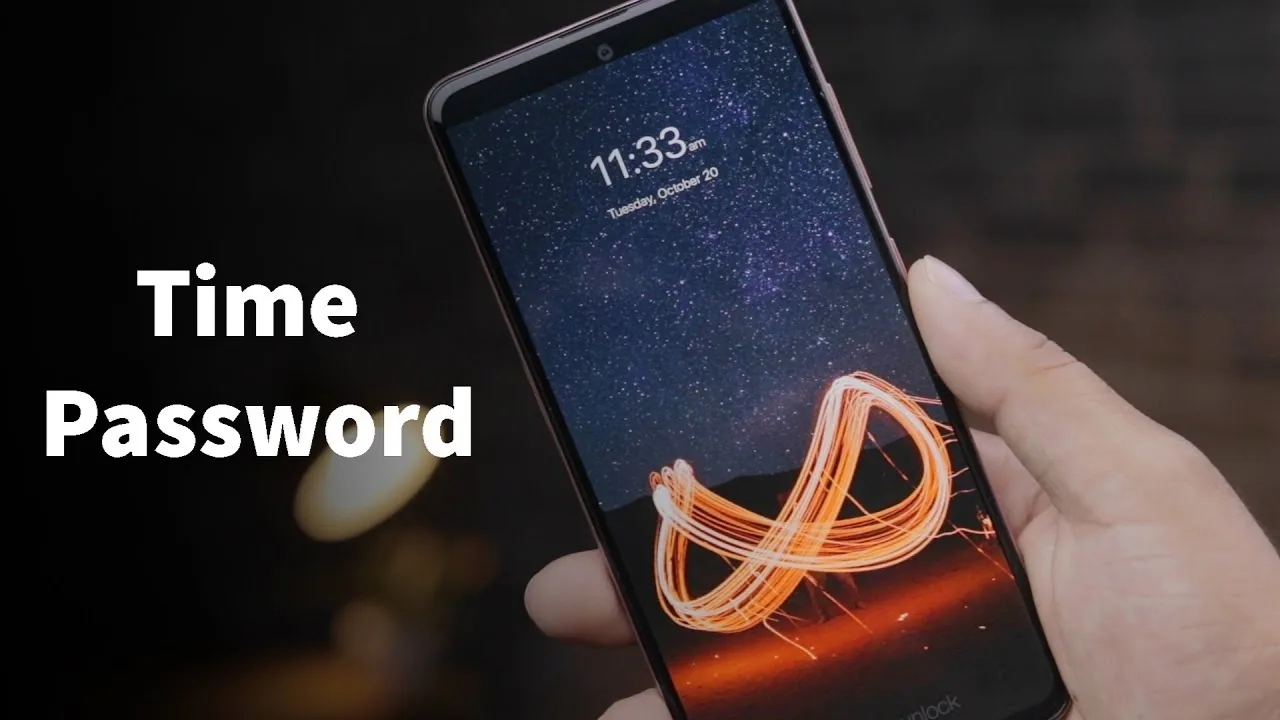
Have you ever thought, “What if my phone unlocked using the current time?”
It sounds unusual at first but that’s exactly why it works so well.
A time-based screen lock uses the current clock time as your phone’s password. Every minute, the password changes automatically. No fixed PIN. No repeated pattern. Just time.
Let’s walk through how you can set time as your screen lock password on Android using an app, step by step, in a simple and natural way.
What Is a Time Screen Lock?
A time screen lock is a smart lock system where your phone unlocks using the current time shown on the clock.
For example:
- If the time is 07:25, the password is 0725
- If the time changes to 07:26, the password becomes 0726
This keeps changing automatically, which makes it extremely hard for others to guess.
Why People Like Time-Based Lock Screens
Once you use it, the logic feels natural. People prefer time locks because:
- The password changes every minute
- You don’t need to remember anything extra
- No one can reuse your old password
- It feels fun, smart, and different
- Great for privacy-focused users
As long as you know the time, you know the password.
How to Set Time as Screen Lock Password (Using an App)
Since Android does not offer this feature by default, you’ll need a time lock screen app from the Play Store.
Step 1: Install a Time Lock Screen App
Open the Play Store and search for:
- Time Lock Screen
- Time Password Lock
- Clock Lock Screen
Install a trusted app with good ratings.
Step 2: Open the App and Allow Permissions
After opening the app, it will ask for permissions like:
- Display over lock screen
- Accessibility access
- Device admin (on some phones)
These permissions are required for the app to work properly.
Step 3: Enable Time Password Mode
Inside the app, turn on Time Password or Clock Password mode.
You’ll usually see options like:
- Current Time (HH:MM)
- Reverse Time
- Mirror Time
- Custom Offset
Choose Current Time if you want it simple.
Step 4: Set a Backup Password
This step is important.
Set a backup PIN or password in case:
- The app crashes
- Your phone restarts
- Time sync causes delay
Never skip this.
Step 5: Activate the Lock Screen
Now enable the lock screen from the app.
Lock your phone and try unlocking it using the current time.
Once it works, you’re all set.
Example: How Time Password Works in Real Life
Let’s say:
- Time = 10:47
- Password = 1047
One minute later:
- Time = 10:48
- Password = 1048
The password keeps changing automatically without you doing anything.
Tips to Use Time Lock Smoothly
- Keep auto time & date turned ON
- Avoid killing the app in background
- Use 24-hour format for better security
- Always remember your backup password
Is Time Lock Screen Safe?
For daily use, yes—especially against casual access.
Because the password keeps changing, shoulder surfing and guessing become difficult.
However, it’s best used as:
- A fun smart lock
- An extra privacy layer
- Not a replacement for banking-grade security
Final Thoughts
Using time as your screen lock password feels clever because it blends into your daily routine. You already check the time now it protects your phone too.
If you enjoy smart, creative ways to secure your device, a time-based screen lock app is definitely worth trying.











Leave a Reply